How to Make Twitch Sub Badges: Size Guide & Easy Alternative
TL;DR – Key Takeaways
- Twitch sub badge dimensions are 72x72px (1x), 108x108px (2x), and 144x144px (4x) for each tier
- Use Photoshop, Canva, or free tools like GIMP to design custom badges that match your brand
- Save as PNG with transparency for professional results across all subscription tiers
- Pre-made sub badge packs save time and guarantee Twitch compliance—check UncommonUnearthings for ready-to-use options
What Are Twitch Sub Badges and Why Do You Need Them?
Twitch sub badges are small icons that appear next to a subscriber’s name in your chat, showing they’re a paying member of your community. These badges reward loyal subs and create visual recognition that encourages others to subscribe. Every streamer should have custom sub badges because they reinforce your brand identity and make your channel feel more polished and professional.
Sub badges come in three tiers—Tier 1, Tier 2, and Tier 3—each representing different subscription levels. You can create unique designs for each tier or use variations of the same design. Having custom badges instead of default Twitch badges makes your community instantly recognizable.
What Are the Exact Size Requirements for Twitch Sub Badges?
Twitch requires sub badges in three specific sizes: 72×72 pixels (1x scale), 108×108 pixels (2x scale), and 144×144 pixels (4x scale). All three sizes must be uploaded for each subscription tier to ensure your badges look crisp on all devices and screen resolutions.
Here’s the breakdown:
- 1x size: 72x72px – mobile and lower resolution displays
- 2x size: 108x108px – standard desktop resolution
- 4x size: 144x144px – high-resolution monitors and retina displays
If you only upload the 1x size, your badge will look pixelated on larger screens. Always provide all three sizes for professional quality across platforms.
How Do You Design Custom Sub Badges from Scratch?
Designing sub badges is easier than you think—you don’t need advanced design skills. Start by opening Photoshop, Canva, or a free tool like GIMP and create a 72x72px canvas to begin with the 1x size.
Step-by-step process:
- Create a new project at 72x72px with a transparent background (PNG format)
- Design your badge—keep it simple, bold, and recognizable at small sizes
- Use your channel colors and theme elements to maintain brand consistency
- Avoid tiny text or fine details that won’t be readable at badge size
- Export as PNG with transparency, then scale up to create the 2x and 4x versions
- Double-check that all three files are properly sized before uploading
Pro tip: Many streamers use icons, mascots, or geometric shapes instead of text-heavy designs. A cute wolf coin or loyalty badge design works great if you’re going for a fantasy or gaming theme.
What Tools Can You Use to Make Sub Badges?
You have plenty of options depending on your budget and design experience:
- Canva (Free/Pro): User-friendly templates, great for beginners—no design experience needed
- Photoshop: Industry standard with complete control, but requires subscription and learning curve
- GIMP (Free): Open-source alternative to Photoshop, more complex but zero cost
- Procreate (iPad): Great for digital artists who want to hand-draw designs
- Affinity Designer: One-time purchase, professional results without monthly fees
If design feels overwhelming or you’re short on time, pre-made sub badge packs from creators like UncommonUnearthings come with all sizes ready to upload. They offer kawaii emotes and sub badges that match various streaming aesthetics.
What Design Tips Make Sub Badges Stand Out?
Great sub badges catch the eye without being distracting. Here’s what makes them effective:
- Bold colors: Use colors that contrast with your chat background (usually dark)
- Keep it simple: Complex details disappear at small sizes—think iconic, not intricate
- Use consistent style across tiers—either the same design with color variations or thematically related designs
- Add personality: Your badges should feel like your brand (cute, edgy, minimalist, etc.)
- Test at small size: Always zoom out to 100% to see how your badge actually looks in chat
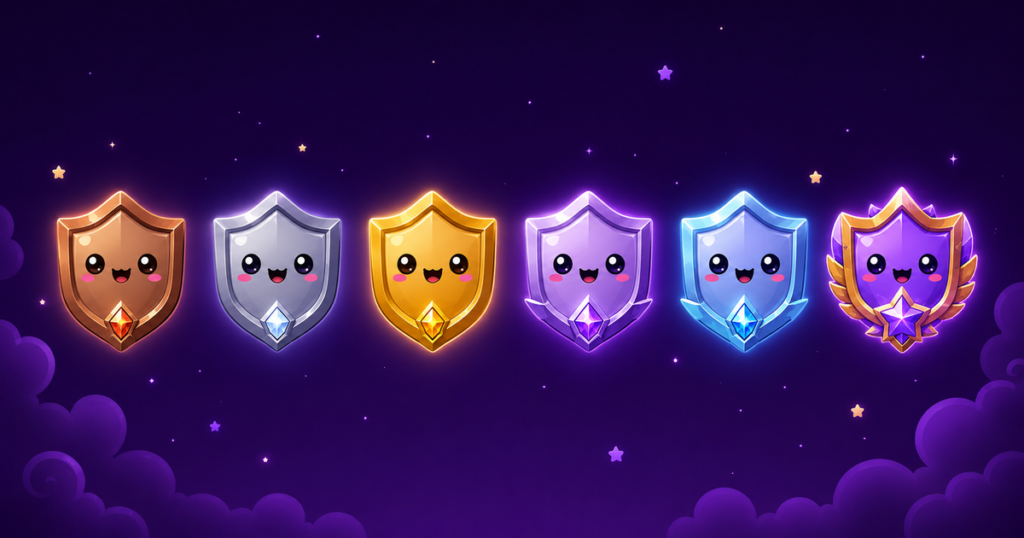
Consider making each tier visually distinct—maybe Tier 1 is silver, Tier 2 is gold, and Tier 3 is platinum. Or use different badge designs that tell a progression story, like leveling up a character or collecting loyalty badges.
How Do You Upload Sub Badges to Your Twitch Channel?
Uploading custom sub badges to Twitch is straightforward. Log into your Creator Dashboard, navigate to Channel Settings, then Emotes & Badges. Select “Sub Badges” and upload your three image files (1x, 2x, and 4x) for each tier.
Make sure:
- All files are PNG format with transparent backgrounds
- File sizes are under 25KB each
- You’ve tested that they display correctly before finalizing
After uploading, it takes a few minutes for changes to go live in your chat.
Can You Use Pre-Made Sub Badge Packs Instead?
Absolutely—and many successful streamers do. Pre-made sub badge packs come with professionally designed badges in all required sizes, saving you hours of work. If you’re launching a new channel or want to maintain consistency, this is the fastest route.
Shops like UncommonUnearthings specialize in stream assets including sub badges, wolf coin designs, and loyalty badges that work for Twitch, Discord, YouTube, and Kick. You get instant access to designs that match trending aesthetics—kawaii, anime, minimalist, or fantasy-themed.
The advantage? No design skills needed, you get professional quality immediately, and you can often customize colors or request modifications.
What’s the Difference Between Sub Badges and Loyalty Badges?
Sub badges show someone has a paid subscription. Loyalty badges, in contrast, reward viewers for consistency and engagement—they unlock through Channel Points, months of watching, or community participation.
You can have both on your channel. Sub badges appear next to names in chat automatically when someone subscribes. Loyalty badges are usually custom awards in your Channel Points shop, so viewers earn and display them intentionally.
Many streamers create matching badge families—using the wolf coin or similar symbol across both sub and loyalty badge designs to create visual unity.
What Mistakes Should You Avoid When Creating Sub Badges?
Common pitfalls that hurt your sub badge quality:
- Only uploading 1x size: Results in blurry badges for most viewers
- Using transparent backgrounds incorrectly: Your badge might look strange on light-themed chats
- Making them too detailed: Fine lines and small text disappear at actual chat size
- Forgetting consistency: Badges that don’t match your channel branding feel out of place
- Using copyrighted characters: Make sure you own or have rights to any artwork in your badges
Where Can You Get Quick Sub Badge Solutions?
If DIY design isn’t your thing, UncommonUnearthings offers done-for-you sub badge packages with animated overlays, emotes, and channel point designs. You’ll find everything needed to make your channel look professional in minutes rather than hours.
Sub Badge Production: Technical Reality
We’ve produced hundreds of sub badge designs and the production reality differs from most tutorials. At 18×18 pixels (the smallest sub badge size), detail disappears almost entirely — only silhouette and color remain. This is why our best-selling sub badge designs use single bold shapes with high contrast rather than complex illustrations. From our sales data: sub badge sets that include 5+ tiers consistently outsell 3-tier sets by 2:1, because streamers planning for growth prefer to buy once. Our Wolf Coin sub badge set is our highest-rated sub badge product, suggesting that coin/medallion formats translate better to tiny sizes than character-based designs.
FAQ: Sub Badges Twitch
Can I change my sub badges after uploading them?
Yes, you can update them anytime through your Creator Dashboard. Upload new images and they’ll replace the old ones. There’s no limit to how many times you can change them, so feel free to refresh your look seasonally or for special events.
Do sub badge sizes have to be exactly 72×72, 108×108, and 144×144?
Yes, Twitch is strict about these dimensions. Uploading incorrect sizes will either result in rejection or stretched/distorted badges. Always double-check your export settings before uploading.
What file format should sub badges be?
PNG is required, and it must have a transparent background (not white or any solid color). PNG supports transparency perfectly and keeps file sizes small enough for Twitch’s limits.
Can I use the same design for all three subscription tiers?
You can, but it’s better to create distinct designs or color variations for each tier so viewers see progression. This encourages people to upgrade their subscriptions to unlock new badge designs.
Update May 2026: Twitch just opened emotes and sub badges to all streamers — read what changed and get started with premade emotes.
UncommonUnearthings is a premium stream asset shop with 1,600+ Etsy sales and a 4.9★ rating. We create cute, dark cute, and horror-inspired emotes, sub badges, channel points, and stream overlays for Twitch, Discord, YouTube, and Kick. All products are instant digital downloads with transparent PNG files in all sizes. Browse our collection →